
Print the labels you already bought.
Drop in a spreadsheet, pick the Avery number on the box, and print. No account, no upload, and no twenty-year-old Word template that falls apart the moment you open it.
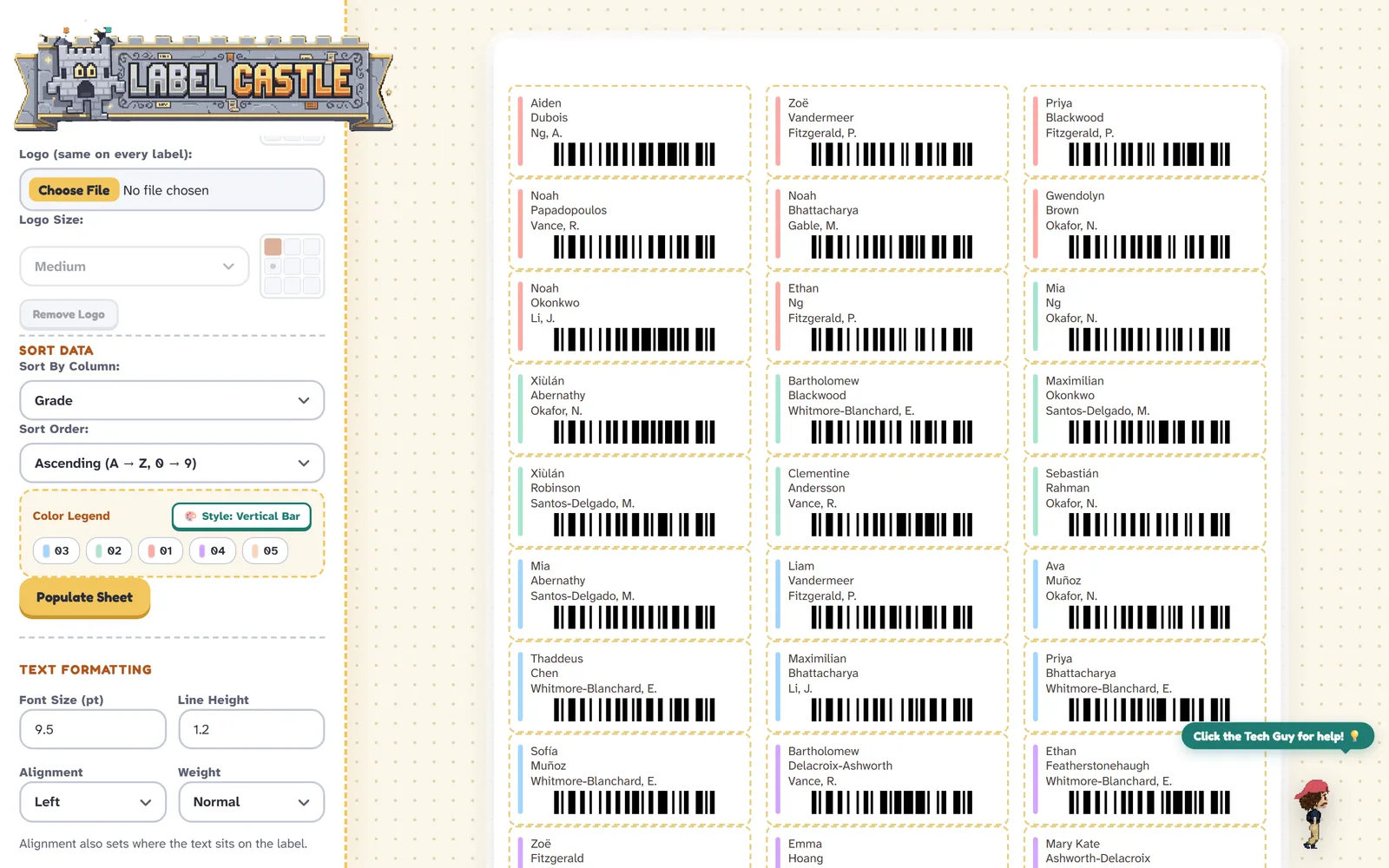
A 30-student roster on Avery 5160 — names, a barcode per student, and a colour bar for each grade.
Your spreadsheets never leave your computer.
Every label is built right in your browser. There's no server to send a class list or a customer list to — and your IT team can confirm that themselves, without reading a line of code. Here's how.
Three steps, one sheet
No design software, no mail-merge wizard.
-
Pick your sheet
Choose the Avery number printed on the box. The app already knows its exact measurements.
-
Add your list
Open the class list you already have: an Excel file (.xlsx or .xls) or a CSV from your school's student system. From Google Sheets, File → Download → .xlsx or .csv both work. Then choose which column goes on which line. Or just type one label and fill the sheet.
-
Print
What you see on screen is what comes out of the printer, one full sheet at a time, however many sheets the list needs.
Everything the box of labels assumes you have
Built around what actually goes wrong at 7am on a Monday.
Your spreadsheet, mapped
Say which column goes on which line — names, rooms, teachers, SKUs — in the order you want them read. Accented names print exactly as typed.
Barcodes and QR codes
Turn any column into a barcode or a QR code, sized to fit the label you're printing on — for library books, lunch lines, inventory or asset tags.
Colour-coded by group
Sort by any column and give each grade, bus route or homeroom its own colour bar, with a legend, so a stack of labels sorts itself.
Logos and backgrounds
Add a logo or a line of fixed text to every label, place them in any corner, or print over your own background design.
Nudge it into line
Every printer feeds paper a little differently. Shift the whole sheet by a millimetre or two once, and it stays put.
Works with the wi-fi off
Install it from your browser and it keeps working in the room where the signal dies. Your work saves as you go, and you can keep a project file for next term.
Find the number on your box
31 Avery numbers across 13 sheet layouts, each with its real measurements built in.
-
Avery 5160
Address · 1" × 2⅝" · 30 per sheet
Same sheet as 5260, 5960, 8160, 18160
-
Avery 5161
Address · 1" × 4" · 20 per sheet
Same sheet as 8161
-
Avery 5162
Address · 1⅓" × 4" · 14 per sheet
Same sheet as 8162
-
Avery 5163
Shipping · 2" × 4" · 10 per sheet
Same sheet as 5263, 8163
-
Avery 5164
Shipping · 3⅓" × 4" · 6 per sheet
Same sheet as 8164
-
Avery 5167
Return Address · ½" × 1¾" · 80 per sheet
Same sheet as 8167
-
Avery 8870
Business Card · 2" × 3.5" · 10 per sheet
-
Avery 5395
Name Badge · 2⅓" × 3⅜" · 8 per sheet
Same sheet as 8395
-
Avery 5366
File Folder · ⅔" × 3-7/16" · 30 per sheet
Same sheet as 8366, 5066, 5266, 8066
-
Avery 5168
Shipping · 3½" × 5" · 4 per sheet
Same sheet as 8168
-
Avery 5126
Shipping · 5½" × 8½" · 2 per sheet
Same sheet as 8126
-
Avery 5165
Shipping · 8½" × 11" · 1 per sheet
Same sheet as 8165
-
Avery 5159
Address · 1½" × 4" · 14 per sheet
Different brand, or a pack from the back of the supply cupboard? Choose Custom Layout in the app and type in the sheet's measurements.
For the person who has to say yes first
Label Castle has no server-side code at all: the site is plain files, and the labels are built by your browser from files you choose. Your spreadsheet is read from your disk and stays there.
That isn't just a promise in a privacy policy. Every page is served with a security policy that forbids the browser from sending data anywhere except back to the site's own static files — and anyone can check it:
- No accounts, no sign-in, no analytics or tracking scripts.
- No third-party fonts, scripts or CDNs — everything is served from one origin.
- Autosave lives in your own browser's storage, on your own machine.
$ curl -sI https://[this site]/app/ \
    | grep -i content-security-policy
content-security-policy: default-src 'self';
  script-src 'self'; connect-src 'self'; …

# connect-src 'self': the page may only talk to
# the server it came from, which hosts nothing but
# static files. There's nowhere for a roster to go.
Questions, bugs or ideas?
Label Castle is made by one person, and it's early days. If something didn't print right, your label number is missing, or something almost made you give up, I'd like to hear about it.
support@labelcastle.com
It helps to mention what you were trying to do, the label number, and your browser and printer if it's a printing problem.
Please don't attach a real class list. A screenshot, or a made-up spreadsheet with the same columns, is all I need.